There is lots of great information on there on Web 2.0 and using technology in the classroom for teachers. And if you are a new teacher it can be especially difficult to figure out what to use with kids. But often if you have teachers that are just starting out or need some help figuring all this tech stuff out, it can be a daunting task as there is lots of information.
My good friend Richard Byrne, writer of the wildly popular Free Technology For Teachers blog approached me a few weeks ago and asked me if I would contribute to a free ebook he was putting together. I was happy to contribute a section on social media. Beyond that you have some of the best in the business of education contributing sections as well, such as Patrick Larkin and George Couros, 2 of my favorite administrators giving us the administrators view of technology. Or Kelly Tenkely, Larry Ferlazzo, Lee, Kolbert, Beth Still, Cory Plough, Adam Bellow, and Silvia Rosenthal Tolisano. Such an amazing list of educators. I am so honored to be included in a publication with them.
Here is the book. Download it, pass it out, share it with your colleagues, administrators, teammates. Once you have a chance to check it out, head back here and tell me what you think.
Super Book Of Web Tools For Educators
Tuesday, December 14, 2010

Friday, December 3, 2010
No more Ink from Overheads on Hand
Are you still using your overhead machine? Tired of dealing with cleaning the marker ink off of your hand after school each day? Since I am left handed I had ink all the way up my arm and had to scrub my arm raw every day to get rid of the ink.
Well there is a ray of light at the end of the tunnel "so to speak." If you have a Document Camera in your classroom along with an Interactive White Board or Tablet you can be ink free very soon.
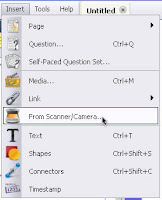 With either Promethean ActivInspire or SmartBoard software you have a toolbar option that allows you to import the image directly from what the Document Camera is seeing and put it into the software and utilize the features of the program to interact and write on top of the displayed image.
Now what does this mean you may be asking? Well you can relegate that overhead to being a coat rack and use your Doc Cams and IWBs to display those old overhead sheets. Yes I am saying to keep all of those great overhead resources that you have used throughout the years just re purpose them and use them in another format.
Place that overhead sheet on top of a blank sheet of paper and then under the doc cam. Open up either the SmartBoard or ActivInspire software and in the toolbar select Inset: Image from Scanner/Camera. You will then click OK on the type of doc cam you are using(comes up as the default). Then look at the screen and there will be a new window that opens with the live image from the doc cam showing. Now click Capture on the window and it will place the image directly into your open Flipchart or Notebook file. Now it is just a matter of picking up a pen from the tray or using your stylus to begin writing on top of the overhead resource without getting any ink your hand.
Well there is a ray of light at the end of the tunnel "so to speak." If you have a Document Camera in your classroom along with an Interactive White Board or Tablet you can be ink free very soon.
 With either Promethean ActivInspire or SmartBoard software you have a toolbar option that allows you to import the image directly from what the Document Camera is seeing and put it into the software and utilize the features of the program to interact and write on top of the displayed image.
Now what does this mean you may be asking? Well you can relegate that overhead to being a coat rack and use your Doc Cams and IWBs to display those old overhead sheets. Yes I am saying to keep all of those great overhead resources that you have used throughout the years just re purpose them and use them in another format.
Place that overhead sheet on top of a blank sheet of paper and then under the doc cam. Open up either the SmartBoard or ActivInspire software and in the toolbar select Inset: Image from Scanner/Camera. You will then click OK on the type of doc cam you are using(comes up as the default). Then look at the screen and there will be a new window that opens with the live image from the doc cam showing. Now click Capture on the window and it will place the image directly into your open Flipchart or Notebook file. Now it is just a matter of picking up a pen from the tray or using your stylus to begin writing on top of the overhead resource without getting any ink your hand.
Tuesday, November 23, 2010
Getting Answers To Those Burning Tech Questions

It is very challenging sometimes to provide the help that teachers and staff need. Wouldn't it be great if you could just point them to a website that answered some of the basic questions you get everyday like what is a cookie, or how do I teach my students what Netiquette is, or how do I use Garageband?
There is a great resource out there from Center for Instructional Technology at the University of South Florida called Tech-Ease that I can point my teachers to. This is a great site that is basically a giant FAQ database on everything tech. There are topics on the Internet, Hardware, Files and Sharing, Email, Images, Chat and Classroom Management. When you choose your topic there is a list of common questions that teachers or other tech users might ask. For example in the hardware section there are questions like what is a flash drive, or how do I burn a CD in Windows XP? The questions are basic for those of us who work in tech everyday but very common for those that don't. Each section also provide additional links to other resources that users can consult when they have questions.
All of the information they provide is great. Very easy to use and understand for even the most basic technology user. All of that is great. But wait! There is more! There are video tutorials available that Professional Development Coordinators or Instructional Technologists can use or point teachers and staff to on a wide variety of topics. Podcasting, Google Earth, Windows Movie Maker, Wikis, and How To Create Interactivity With iPods are just a few topics. Oh wait there is more. There are some really great guides for users to download on even more topics like PowerPoint, Inspiration, Nvu, Google Docs, Social Bookmarking, Second Life, I really can not list them all. You just need to head over there and check it out!
There are tutorials for both PC only and Mac only products and they have a great section on enabling the accessibility features in both Windows and Mac OS X.
I was an instant fan of this site. I even learned a thing or two. So next time a teacher or staff member has a question or you want to brush up on your skills check out Tech-Ease, oh, and subscribe to their podcast in iTunes. You will love it!
Tech-Ease-Quick Answers To Real Classroom Technology Questions
What is bloomin' today?
Recently I have been quite impressed with the various representations I have found online of Blooms Taxonomy.
Kelly Tenkely's blog ilearntechnology.com has several (including some digital resources):
Just today I came across another great resource related to Bloom's Taxonomy. I was very fortunate to find a Storybird creation that uses questions to help introduce the idea of Blooms Taxonomy to children. Storybird makes it possible to do so many things with collaborative storytelling and writing. This Blooming Questions Storybird was created by Jane Hewitt who also has a great blog (but that is for another post). I saw her name on the Storybird, so I went to twitter and searched for her. Once I found her on twitter, I found a link to her blog that contains all kinds of neat projects she has done with students.

Kelly Tenkely's blog ilearntechnology.com has several (including some digital resources):
Just today I came across another great resource related to Bloom's Taxonomy. I was very fortunate to find a Storybird creation that uses questions to help introduce the idea of Blooms Taxonomy to children. Storybird makes it possible to do so many things with collaborative storytelling and writing. This Blooming Questions Storybird was created by Jane Hewitt who also has a great blog (but that is for another post). I saw her name on the Storybird, so I went to twitter and searched for her. Once I found her on twitter, I found a link to her blog that contains all kinds of neat projects she has done with students.
Thursday, November 4, 2010

Wednesday, November 3, 2010
Problem solve, think critically, and build creative skills at the same time ...
Magic Pen requires students to use problem solving, critical thinking, and creative skills to get the red ball to the flag using certain shapes and gravity. Now it may sound simple, but there are various levels and surprises. My students absolutely LOVED learning with this activity in the past (I decided that if it is a game with an educational purpose, then I am going to call it an activity) :-) Here is a post on the class blog with some videos. A few students tried to do the "activity" (game) on the laptops but it worked much better up on the IWB (Interactive White Board).
Don't click on the game box in the middle when you get the page linked above. You need to wait until the pink line at the bottom goes away and you can see the word PLAY.
Don't click on the game box in the middle when you get the page linked above. You need to wait until the pink line at the bottom goes away and you can see the word PLAY.
Words, Words, Words

Wordle has been one of my favorite tools for a while. With Wordle, you can create word clouds (like the one posted above). You type in a list of word (or copy and past a story, a blog post, an article ...). The size of the word in the wordle image depends on how many times that word was used. You do have options to change colors, backgrounds, fonts, and direction of some words in Wordle. Tagul is a similar word cloud creator, but you can create certain shapes with it.
I like the variety of things that I can do with Wordle and how it can be used in the classroom. I came across a wiki that presented even more ideas: MoreThanWordles. This page by Jen Wagner (twitter @jenwagner) is a collection of resources (and just neat things) that can be done with word clouds whether they are created using the Wordle program or not. I really like the jigsaw puzzle image that is over a wordle so pieces can be removed one at a time. The presentation on adding graphics that can be found on that wiki gives me even more ideas for ways a teacher (or really anybody) can use Wordle or word clouds.
She also does the daily GuessTheWordle daily challenge where a wordle is posted and students have to figure out what the words all have in common. You can read more about this challenge as well as find examples and answers from the past on the GuessTheWordle Wiki.
Here are some other great resources related to word clouds and Wordle:
- Ways to Use Wordle in Your Classroom
- Using Wordle for Comparision (example uses innauguration speeches)
- 43 Interesting Ways (and tips) for Using Wordle in the Classroom
- Word Cloud Resources, Tips, and Tools (provides some options for making word clouds besides Wordle
Subscribe to:
Posts (Atom)