So we have now had a new multi-touch mobile SMARTBoard with the extreme short throw projector in our office for a little over a month now and I have to weigh in on it.
First off the multi-touch capability for me has to be one of the best features of the board. The ability to have two people working on the board at the same time is a great feature. As well the ability to size images similarly to what an iPad/iPod, SMARTTable or Microsoft Surface can do with the multi-point drag feature. Most of the rest of the board features are the same as they were before but with a couple of tweaks here and there for upgrades and add-ons.
So what have we been doing with it for the past month? We have been asking questions. I know you may be thinking, why or what? We wanted to see how people reacted to the board as they were coming into and through the office. The questions are more of a prompt than anything else in that we want people to touch and interact with the board. Some people have come in and asked us what it is, while others know what it is and just keep going. We have had some takers with the questions that we have been asking. Things like, what is your favorite cereal, to thought provoking ones about your favorite quotes. The main thing is that people are touching the board and asking questions about it.
So as a teacher, I have to ask you how do you use your interactive white board (IWB)? Whether it is a Promethean ActiveBoard or a SMARTBoard. Do you just look at it in the room? Is it just a fixture on the wall, or stand? Or is it a tool that you use within your classroom? The best thing that you can do with your IWB is use it, and if you do not understand something just ask. I am pretty sure that there is someone in your building that can answer or is willing to help you to get the answers to your questions. Remember that you have an on-site technology facilitator as well as a District Instructional Technologist that are here to help you to better understand the tool so that you can make it an effective, integrated and productive part of your instructional day.
Showing posts with label IWB. Show all posts
Showing posts with label IWB. Show all posts
Monday, May 9, 2011

Friday, December 3, 2010
No more Ink from Overheads on Hand
Are you still using your overhead machine? Tired of dealing with cleaning the marker ink off of your hand after school each day? Since I am left handed I had ink all the way up my arm and had to scrub my arm raw every day to get rid of the ink.
Well there is a ray of light at the end of the tunnel "so to speak." If you have a Document Camera in your classroom along with an Interactive White Board or Tablet you can be ink free very soon.
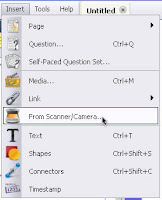 With either Promethean ActivInspire or SmartBoard software you have a toolbar option that allows you to import the image directly from what the Document Camera is seeing and put it into the software and utilize the features of the program to interact and write on top of the displayed image.
Now what does this mean you may be asking? Well you can relegate that overhead to being a coat rack and use your Doc Cams and IWBs to display those old overhead sheets. Yes I am saying to keep all of those great overhead resources that you have used throughout the years just re purpose them and use them in another format.
Place that overhead sheet on top of a blank sheet of paper and then under the doc cam. Open up either the SmartBoard or ActivInspire software and in the toolbar select Inset: Image from Scanner/Camera. You will then click OK on the type of doc cam you are using(comes up as the default). Then look at the screen and there will be a new window that opens with the live image from the doc cam showing. Now click Capture on the window and it will place the image directly into your open Flipchart or Notebook file. Now it is just a matter of picking up a pen from the tray or using your stylus to begin writing on top of the overhead resource without getting any ink your hand.
Well there is a ray of light at the end of the tunnel "so to speak." If you have a Document Camera in your classroom along with an Interactive White Board or Tablet you can be ink free very soon.
 With either Promethean ActivInspire or SmartBoard software you have a toolbar option that allows you to import the image directly from what the Document Camera is seeing and put it into the software and utilize the features of the program to interact and write on top of the displayed image.
Now what does this mean you may be asking? Well you can relegate that overhead to being a coat rack and use your Doc Cams and IWBs to display those old overhead sheets. Yes I am saying to keep all of those great overhead resources that you have used throughout the years just re purpose them and use them in another format.
Place that overhead sheet on top of a blank sheet of paper and then under the doc cam. Open up either the SmartBoard or ActivInspire software and in the toolbar select Inset: Image from Scanner/Camera. You will then click OK on the type of doc cam you are using(comes up as the default). Then look at the screen and there will be a new window that opens with the live image from the doc cam showing. Now click Capture on the window and it will place the image directly into your open Flipchart or Notebook file. Now it is just a matter of picking up a pen from the tray or using your stylus to begin writing on top of the overhead resource without getting any ink your hand.
Tuesday, August 24, 2010
Quick Tips
I found a blog that (right now) has 22 Promethean Quick Tips for the Promethean ActivBoards. Although many of the first ideas are specifically for ActivBoards, there are some resources towards the end for all interactive whiteboard and just for learning in general. These quick tips can be found on the iLearnTechnology Blog which is focused on integrating technology in the classroom. When Kelly writes each post, she gives a description of the tool or idea she is sharing and then lists several ways it can be used in a classroom.
Here is a list of the Quick Tips on this blog:
1. Making Text Interactive
2. Drag a Copy
3. Downloading Resource Packs
4. Adding Resources to the Resource Library
5. Using Magic Ink
6. Inserting Activity Pages
7. Using Layers
8. Subscribing to ActivTips
9. Adding Popup Labels to Objects
10. Using Wordle
11. Using Drag and Drop Actions.
12. Wallwisher
13. Container-Specific Objects
14. Scribble Maps
15. Containers with Keywords
16. Fotobabble
17. Building Anticipation with the Zimmer Twins
18. Geo Greetings
19. Jeopardy Labs
20.Teacher Led IWB
21. Triptico e-Learning Resources
22. Google Readers
Here is a list of the Quick Tips on this blog:
1. Making Text Interactive
2. Drag a Copy
3. Downloading Resource Packs
4. Adding Resources to the Resource Library
5. Using Magic Ink
6. Inserting Activity Pages
7. Using Layers
8. Subscribing to ActivTips
9. Adding Popup Labels to Objects
10. Using Wordle
11. Using Drag and Drop Actions.
12. Wallwisher
13. Container-Specific Objects
14. Scribble Maps
15. Containers with Keywords
16. Fotobabble
17. Building Anticipation with the Zimmer Twins
18. Geo Greetings
19. Jeopardy Labs
20.Teacher Led IWB
21. Triptico e-Learning Resources
22. Google Readers
Subscribe to:
Posts (Atom)